Shapely 3D 1.1 — see your model at real size before you print

Shapely 3D 1.1 is out, twelve days after 1.0. Most of it is about the moment between finishing a model and printing it: the question of whether the thing on screen is really the size you think it is. On iPhone and iPad it now has a one-tap answer.
#View in Room
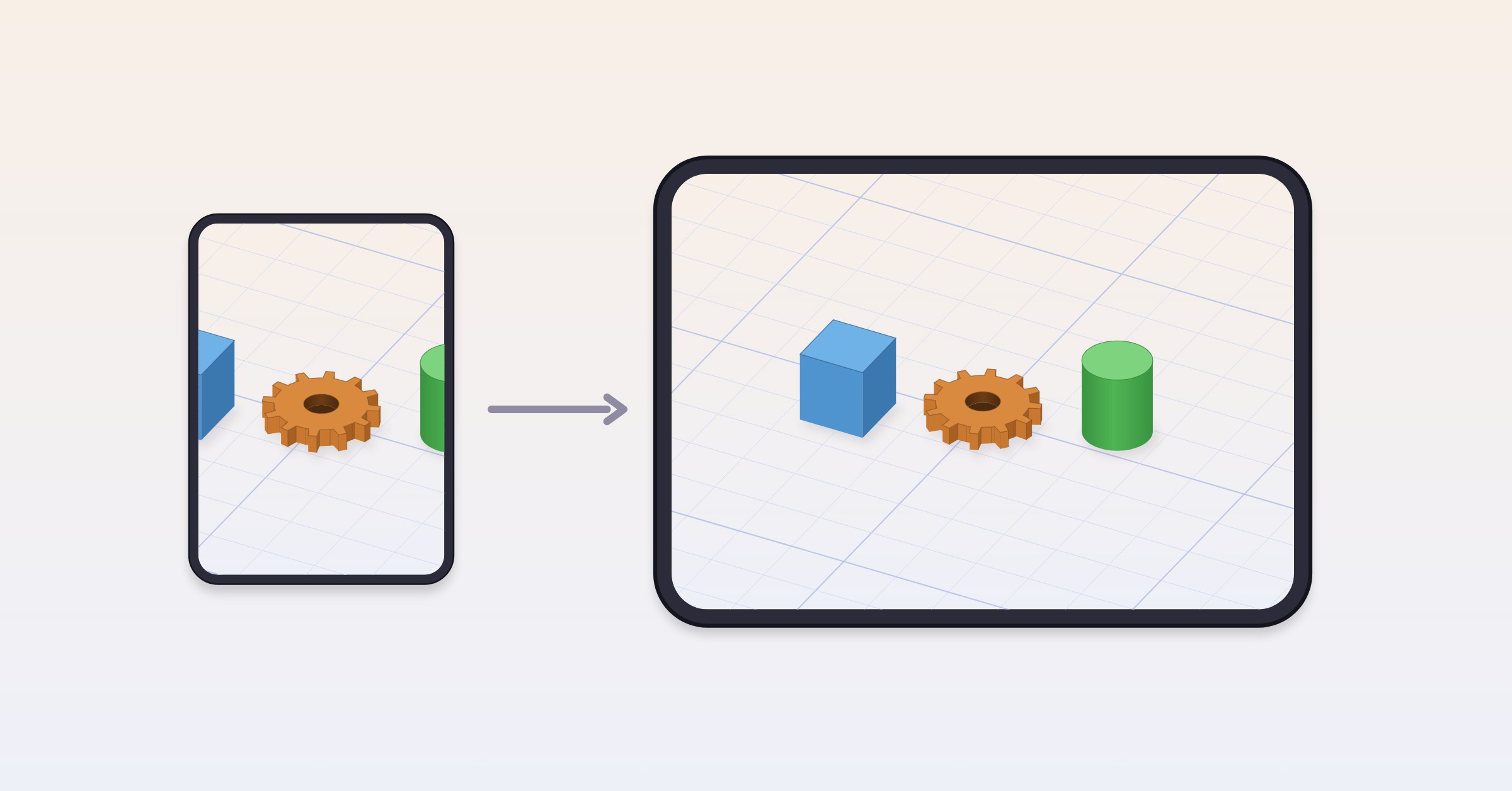
Under the orientation cube, on iPhone and iPad running iOS 27, there is a new button: View in Room. Tap it and the scene opens in AR Quick Look, placed on a real surface through the camera, at its actual size. A 43 mm bracket appears on your desk as a 43 mm bracket. Walk around it, hold your phone next to the part it has to fit, and decide whether to print — before the printer spends an hour finding out for you.
It is the check we kept doing by hand with a ruler and a printed draft, and it is the reason this release exists. On iPad it also lives in the View menu.
#USDZ export
View in Room is built on a new export, and the export is yours too: Export USDZ… in the File menu on macOS 27 and in the project menu on iOS 27 writes the scene as a USDZ file, one mesh per object, each with its own color, in metres at real scale. Quick Look opens it, Preview opens it, and so does any USD tool. STL stays the format for slicers; USDZ is the one for showing a model to someone.
#Per-face colors
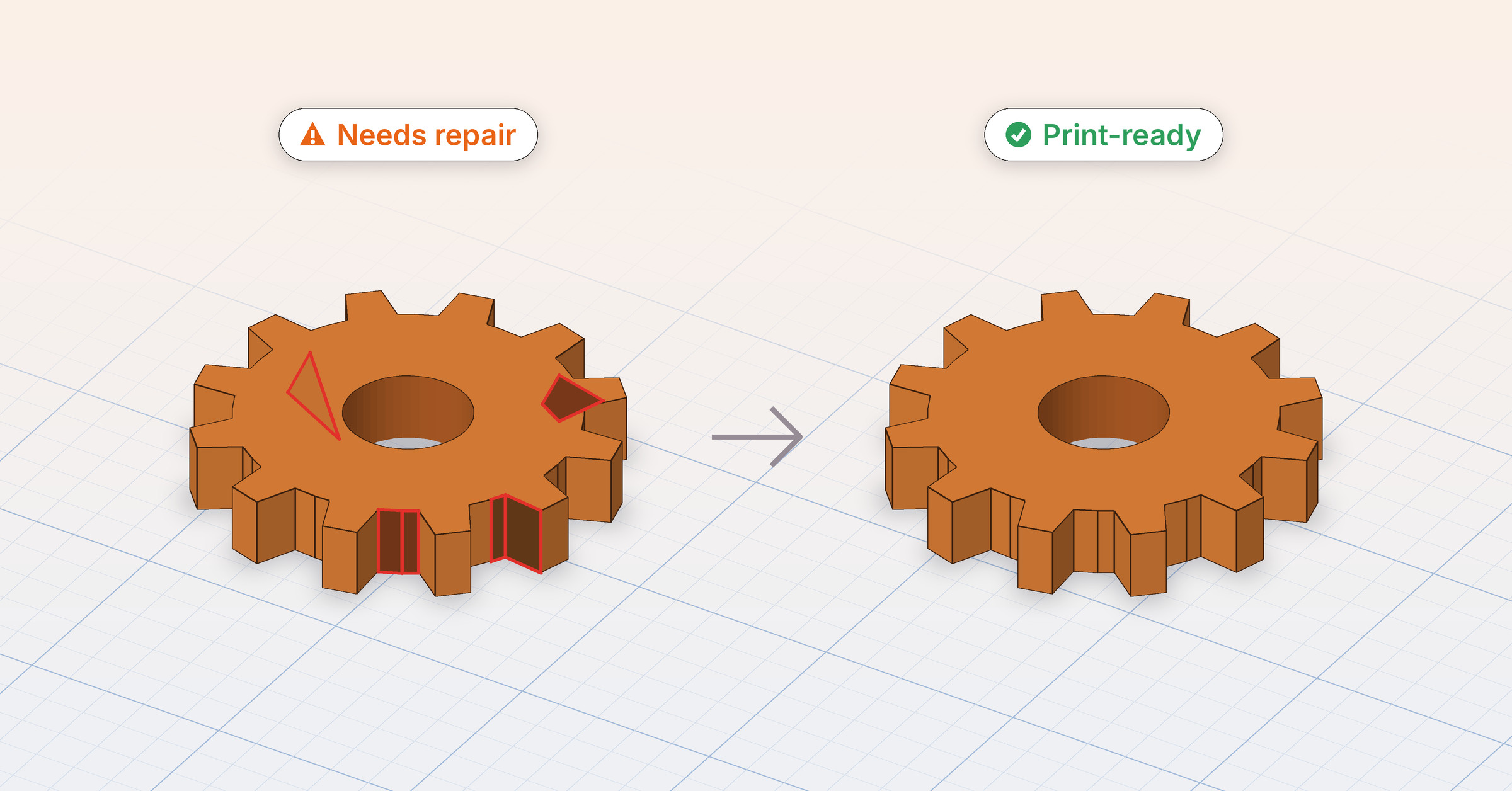
Edit Faces (Pro) gains a palette. Select a face — or several — and paint just those, so a lid, a raised label, or one side of a box can carry a color of its own while the rest of the object keeps the object’s color. Use Object Color takes a face back, and Reset Face Colors in the inspector clears the whole object.
Face colors follow the geometry: they survive booleans, cuts, point edits, smoothing, and duplicates, they are saved in the project, and they come out in the USDZ export — so View in Room shows them. STL carries no color, so it never did and still doesn’t.
#Apple Pencil
The sketch tool on iPad now listens to the Pencil’s gestures: a squeeze (Pencil Pro) or double-tap (Pencil 2 and Pro) switches between Pen and Freehand mid-drawing, following whichever action you picked in Settings › Apple Pencil, and a hovering Pencil shows a crosshair where the next corner will land.
Hover reaches the viewport too, on M2 iPads and later (and trackpad pointers): hold the Pencil just above the screen and, like the Mac’s cursor, an armed shape or copy shows a translucent preview where it will land, the ruler previews its snap point, and the cut and Edit Faces tools highlight the face under the tip. On iPadOS 27, once the Pencil has touched the canvas a finger or resting hand draws nothing.
#Spotlight, Siri, and Shortcuts
Every project is now indexed by its name and by the names of the objects in it, so searching “bracket” finds the project holding one even if you called it “Untitled 7”, and the result opens straight into the editor.
Shortcuts and Siri gain three actions: Open Project, New Project, and Export STL, which hands you the STL file without opening the app — Pro, like every STL export; without Pro it offers to open the app and shows the paywall, as the in-app export does.
#iPhone catches up
Two things the iPhone layout was missing are in. A project menu at the top of the objects list holds rename, STL import and export, sharing, and Settings — until now there was no way to import or export an STL on iPhone at all, since there is no menu bar to put it in. And the objects list supports drag-to-reorder on iPhone and iPad running iOS 27: press a row and drag it into place, no edit mode needed, the way the Mac sidebar has always worked. On iOS 26 the rows reorder in multi-select mode. Order matters for Subtract, which keeps the topmost selected object as its base.
#iOS 27, iPadOS 27, and macOS 27
1.1 is built for the new releases. On iOS 27 the editor’s top bar hands its controls to the system’s overflow menu as the window narrows, so Back, the objects list, and the Tool menu are always one tap away at any width. Saving a copy of a project or exporting an STL on the new OS goes through the system’s document pipeline, which writes the file in the background. Everything still runs on iOS 26 and macOS 26; the features that need the newer OS say so above.
#Fixed
- Flat View on iPhone no longer zooms or shifts the picture when switching between 2D and 3D, on any viewport shape.
- Pinch-to-zoom in 2D no longer slides the model sideways after a pan.
- Undo names a reorder “Undo Reorder”, and the welcome tour’s pages sit centred in the sheet.
#Where to get it
Shapely 3D 1.1 is a free update on the App Store for Mac, iPad, and iPhone. The launch discount on Shapely 3D Pro — $4.99 instead of $9.99 — still runs until September 30.
If View in Room saves you a misprint, or shows you one you’d have missed, we’d like to hear about it: [email protected].